
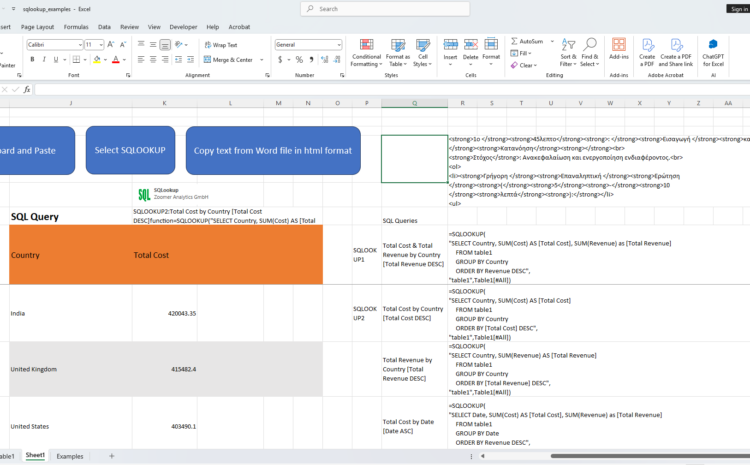
Explanation of the VBA Code: “CopyHTMLFromWordToExcel_WithFilePicker”

This VBA macro automates the process of extracting formatted text from a Word document, converting it into HTML, and pasting the resulting HTML-formatted text into a specified Excel cell.
Excel file: sqlookup_examples.xlsm
Word file: word_file_to_copy_2.docx

View the VBA macro code in txt format
What the Code Does
- File Selection:
- The macro opens a file dialog to let the user select a Word document (
*.docor*.docx). - If the user does not select a file, the macro exits.
- The macro opens a file dialog to let the user select a Word document (
- Temporary File Handling:
- The selected Word file is copied to a temporary location. This ensures the original file remains unaffected during processing.
- Word Application Setup:
- A new instance of Microsoft Word is created and runs in the background (invisible mode).
- The Word document is opened in read-only mode.
- HTML Conversion:
- The macro processes the content of the Word document paragraph by paragraph.
- Each paragraph is analyzed for:
- Lists: The macro detects ordered (numbered) and unordered (bulleted or square) lists and converts them into appropriate HTML tags (
- Text Formatting: Bold, italic, and underlined text is converted to corresponding HTML tags (
,,).
- Lists: The macro detects ordered (numbered) and unordered (bulleted or square) lists and converts them into appropriate HTML tags (
- The resulting HTML is stored in a string variable (
htmlFormattedText).
- Insert HTML into Excel:
- The HTML-formatted string is pasted into a specified cell in Excel (
R4by default).
- The HTML-formatted string is pasted into a specified cell in Excel (
- Cleanup:
- The Word document is closed, and the Word application is quit.
- The temporary file is deleted.
- All objects are released to free up memory.
- User Notification:
- A message box informs the user that the operation is complete and displays the cell where the HTML has been pasted.
Key Features
- Handles Lists:
- Supports nested lists with levels.
- Differentiates between ordered (
- Text Formatting:
- Applies HTML tags to represent bold, italic, and underlined text.
- Preserves Formatting:
- Converts Word document formatting into equivalent HTML.
- User Interaction:
- Lets the user select the Word file interactively via a file picker.
Practical Use Case
This macro is useful for:
- Developers, content creators, or anyone who needs to transfer content from Word to Excel while preserving formatting in HTML.
- Preparing content for web applications or databases that require HTML input.
How to Use the Macro
- Open Excel and access the VBA editor (
Alt + F11). - Insert the code into a new module.
- Run the macro (
F5). - Select a Word document when prompted.
- The formatted HTML text will appear in cell
R4(or another specified cell) of the active sheet.
Example Input and Output
Input (Word Document):
1. Introduction
   a. Bold text example.
   b. Italic text example.

- Bullet point
  - Nested bullet point
Output (HTML in Excel):
- Introduction
- Bold text example.
- Italic text example.
- Bullet point
- Nested bullet point
Let me know if you need further clarifications or enhancements to the macro!