
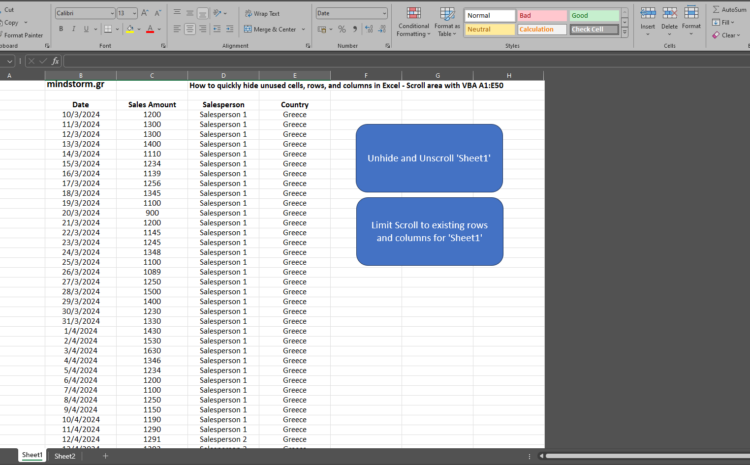
How to quickly hide unused cells, rows and columns in Excel – Scroll area with VBA A1:E50
The Sub below is assigned with macro to button Limit Scroll to existing rows and columns for ‘Sheet1‘
Sub UnhideAndUnscrollSheet()
‘Button <
Dim ws As Worksheet
Dim lastRow As Long
Set ws = ThisWorkbook.Sheets(“Sheet1”)
‘ Unhide all rows and columns
ws.Rows.Hidden = False
ws.Columns.Hidden = False
‘ Set cell B1 to bold
ws.Range(“B1”).Font.Bold = True
‘ Set headers in row 3 to bold
ws.Rows(3).Font.Bold = True
‘ Set all columns to font size 13
ws.Cells.Font.Size = 13
‘ Set cell B1 to font size 16
ws.Range(“B1”).Font.Size = 16
‘ Set all rows and columns to a reasonable height and width
ws.Rows.RowHeight = 15 ‘ You can adjust this value as needed
ws.Columns.ColumnWidth = 20 ‘ You can adjust this value as needed
‘ Get the last row in column B starting from row 4
If Application.WorksheetFunction.CountA(ws.Range(“B4:B” & ws.Rows.Count)) > 0 Then
lastRow = ws.Range(“B4:B” & ws.Rows.Count).Find(“*”, SearchOrder:=xlByRows, SearchDirection:=xlPrevious).Row
Else
lastRow = 4 ‘ If there are no data, set lastRow to 4
End If
‘ Clear cells after the last row in column B, C, D, E from row 4 onwards
If lastRow < ws.Rows.Count Then ws.Range("B" & (lastRow + 1) & ":B" & ws.Rows.Count).ClearContents ws.Range("C" & (lastRow + 1) & ":C" & ws.Rows.Count).ClearContents ws.Range("D" & (lastRow + 1) & ":D" & ws.Rows.Count).ClearContents ws.Range("E" & (lastRow + 1) & ":E" & ws.Rows.Count).ClearContents End If ' Clear any custom scroll area ws.scrollArea = "" ' Ensure the entire sheet is visible ws.Activate ActiveWindow.ScrollRow = 1 ActiveWindow.ScrollColumn = 1 MsgBox "All rows and columns are now visible and scrollable. Cells after the last row in column B (Date) have been cleared." End Sub #coding #excel #scroll #mindstormGR