
This is the PDF file. Download “demo_ten_page_document_with_paragraphs.pdf”
This is the extracted text from the PDF file. Download “1.docx”
Here is the python code to read and extract text from a PDF file:
import tkinter as tk
import pdfplumber
from PIL import Image, ImageTk
from tkinter.filedialog import askopenfile
from docx import Document
from docx.shared import Inches
import os
root = tk.Tk()
canvas = tk.Canvas(root, width=600, height=200)
canvas.grid(columnspan=3, rowspan=3)
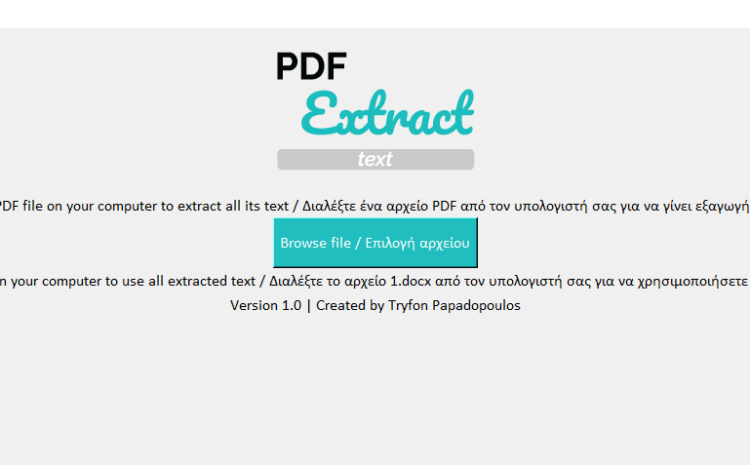
# logo
try:
logo = Image.open(‘logo.png’)
logo = ImageTk.PhotoImage(logo)
logo_label = tk.Label(image=logo)
logo_label.image = logo
logo_label.grid(column=1, row=0)
except FileNotFoundError:
print(“Logo file not found. Please ensure logo.png is in the same directory as the script.”)
# instructions
instructions = tk.Label(root, text=“Select a PDF file on your computer to extract all its text / Διαλέξτε ένα αρχείο PDF από τον υπολογιστή σας για να γίνει εξαγωγή κειμένου“, font=“Calibri”)
instructions.grid(columnspan=3, column=0, row=1)
instructions2 = tk.Label(root, text=“Select 1.docx file on your computer to use all extracted text / Διαλέξτε το αρχείο 1.docx από τον υπολογιστή σας για να χρησιμοποιήσετε το εξαχθέν κείμενο“, font=“Calibri”)
instructions2.grid(columnspan=3, column=0, row=6)
# instructions3
instructions3 = tk.Label(root, text=“Version 1.0 | Created by Tryfon Papadopoulos”, font=“Calibri”)
instructions3.grid(columnspan=3, column=0, row=7)
def open_file():
browse_text.set(“loading…”)
file = askopenfile(parent=root, mode=‘rb’, title=“Choose a file / Διαλέξτε ένα αρχείο“, filetypes=[(“Pdf file”, “*.pdf”)])
if file:
with pdfplumber.open(file) as pdf:
page_content = “”
has_text = False
for page in pdf.pages:
text = page.extract_text()
if text: # Ensure the text is not None
page_content += text + “n“
has_text = True
print(f“Extracted text from page {page.page_number}: {text}“) # Debug: print extracted text
else:
print(f“No text on page {page.page_number}, saving as image.”) # Debug: print no text message
print(“Final extracted content:n“, page_content) # Debug: print all extracted content
# Create a new Word document
doc = Document()
if has_text:
doc.add_paragraph(page_content)
else:
for page_num, page in enumerate(pdf.pages):
if not page.extract_text():
img = page.to_image(resolution=300)
img_path = f“page_{page_num + 1}.png”
img.save(img_path)
doc.add_picture(img_path, width=Inches(6))
os.remove(img_path)
# Save the document as “1.docx”
doc.save(“1.docx”)
print(“Content saved to 1.docx”) # Debug: confirm saving to Word file
# text box
text_box = tk.Text(root, height=13, width=70, padx=15, pady=15)
if has_text:
text_box.insert(1.0, page_content)
else:
text_box.insert(1.0, “No text found in PDF. Images saved to Word document.”)
text_box.tag_configure(“center”, justify=“center”)
text_box.tag_add(“center”, 1.0, “end”)
text_box.grid(column=1, row=3)
browse_text.set(“Browse file / Επιλογή αρχείου“)
# browse button
browse_text = tk.StringVar()
browse_btn = tk.Button(root, textvariable=browse_text, command=lambda: open_file(), font=“Calibri”, bg=“#20bebe”, fg=“white”, height=2, width=25)
browse_text.set(“Browse file / Επιλογή αρχείου“)
browse_btn.grid(column=1, row=2)
canvas = tk.Canvas(root, width=600, height=150)
canvas.grid(columnspan=3)
root.mainloop()